Momentum's Clock :clock: uses the time and time zone from your computer. If the time on your dashboard looks incorrect, checking your computer's date, time, and time zone settings is usually the best place to start.
Work through the troubleshooting steps below in order, then open a new Momentum tab after each change to see if the clock is displaying correctly.
💡 Before you start: Check whether the time is also incorrect elsewhere on your computer or on other websites and services. This can help determine whether the issue is coming from your system settings or browser.
Fix a Clock that's one hour ahead or behind
Is your Clock showing an hour ahead or behind, even though your computer's time or Momentum World Clock is correct?
This may be related to recent Daylight Saving Time (DST) or regional time-zone changes. In some cases, your computer may automatically select a time zone that doesn't match your region's current time-zone rules.
Here's how to check and correct your time-zone settings.
Check your time zone on Windows
- Open Settings → Time & language → Date & time.
- Make sure Set time automatically is turned ON.
- Check the time zone currently selected.
- If the selected time zone is incorrect, turn OFF Set time zone automatically.
- Under Time zone, manually select the correct time zone for your location.
- Check that the daylight saving setting is appropriate for your region, if available.
- Open a new Momentum tab and check whether the Clock now displays the correct time.
💡 Tip: Keep Set time automatically turned on to maintain an accurate system clock. If Windows selects the wrong time zone automatically, you can manually choose the correct one without disabling automatic time synchronization.
Check your time zone on Mac
- Open System Settings → General → Date & Time.
- Make sure Set time and date automatically is enabled.
- Check whether the selected time zone matches your current location.
- If the time zone is incorrect, turn off Set time zone automatically using your current location.
- Select your correct city or region under Time zone.
- Open a new Momentum tab and check the Clock again.
💡 Why this helps: Your computer's time-zone settings determine how local time is interpreted. Correcting an outdated or incorrect regional setting may help resolve a one-hour difference.
If your time zone is already correct but the Clock still displays the wrong time, continue with the steps below.
Reset your system time
Refreshing your computer's time zone can help when your system appears to have the correct time but Momentum is displaying something different.
Reset your system time on Mac
Switch your time zone temporarily, then switch it back to your correct location to refresh the time zone information macOS provides to Momentum.
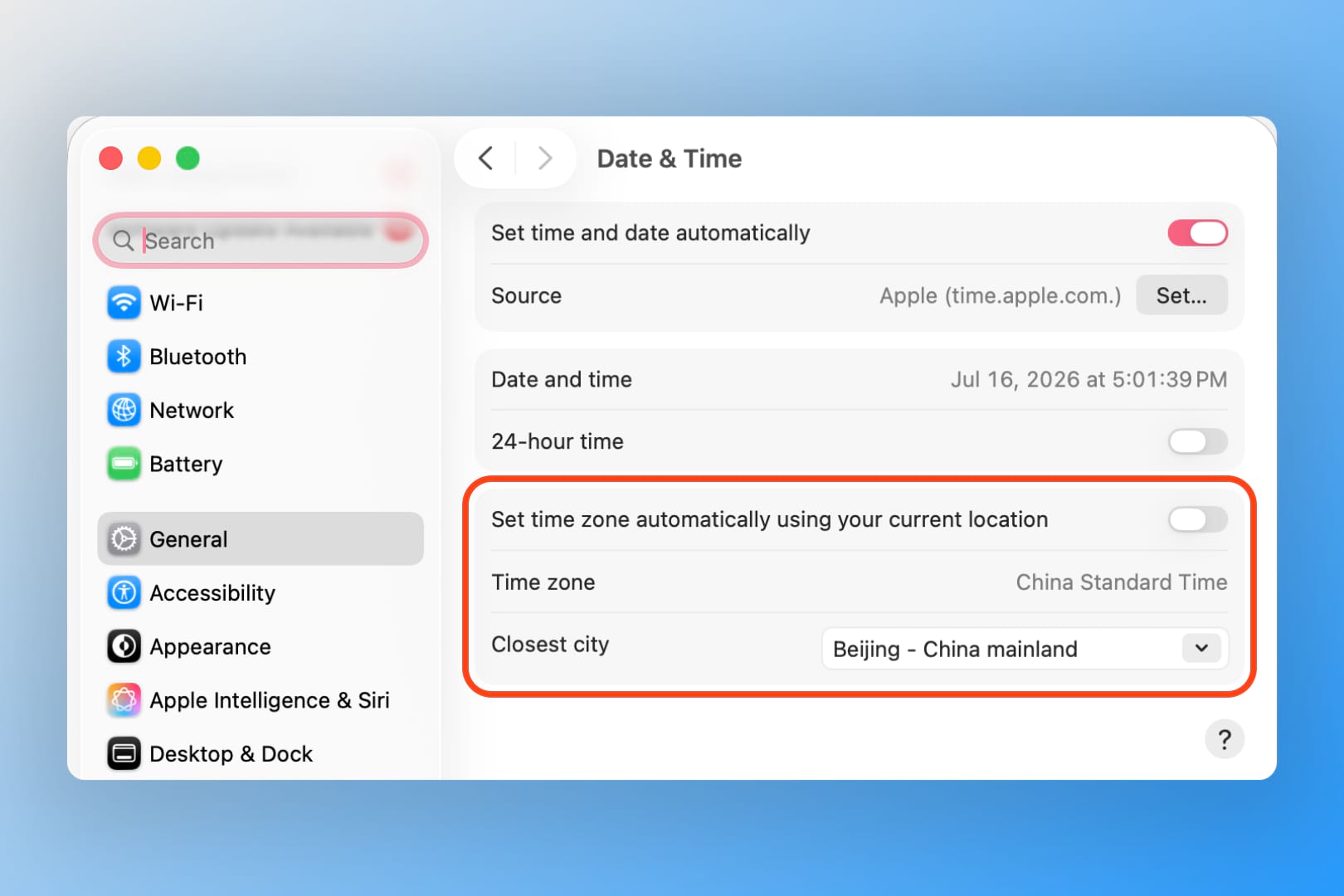
- Click the time at the top right of your menu bar.
- Select Open Date & Time Preferences...
- Click the lock icon in the bottom left and enter your password to make changes.
- Uncheck Set time zone automatically using current location.
- Open the Closest City dropdown and select a city that isn't your own.
- Search for your actual city, select it, then press
Enter. - Return to Momentum and check whether the clock now displays correctly.
Switching time zones and back forces macOS to refresh its time zone data, which can clear up display mismatches.
💡 Why this helps: Temporarily switching to another time zone and back can refresh the time-zone information macOS provides to Momentum.
Reset your system time on Windows
Temporarily changing your Windows time zone and then switching it back can refresh the time-zone information Momentum uses.
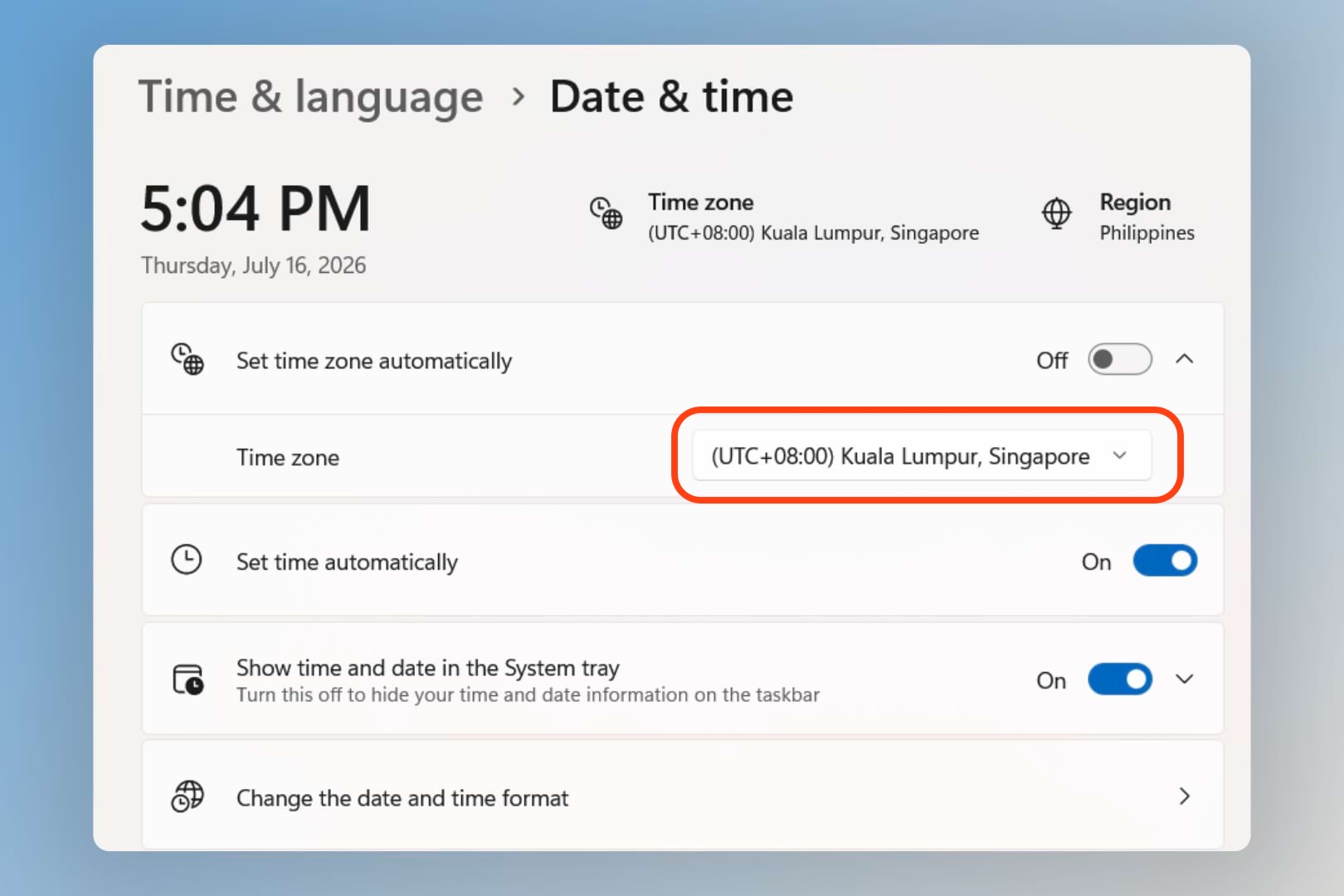
- Right-click the time and date in the bottom-right corner of the taskbar.
- Select Adjust date and time.
- Turn off Set time zone automatically.
- Under Time zone, select a different time zone from the dropdown.
- Select your correct time zone again.
- Keep Set time automatically turned on.
- If automatic time-zone detection previously selected the wrong region, leave Set time zone automatically turned off.
- Open a new Momentum tab and check whether the Clock now displays the correct time.
💡 Why this helps: Temporarily switching to another time zone and back can refresh the time-zone information Windows provides to Momentum.
Tip: You don't need to turn automatic time-zone detection back on if it was selecting the wrong region. You can keep your time zone manually selected while allowing Windows to synchronize your system time automatically.
Restart your browser and computer
If your system time and time zone are correct, refresh your browser and computer before moving on to more advanced troubleshooting.
Restart your browser
Exit your browser completely, reopen it, then open a new Momentum tab to see if the time now displays correctly.
Restart your computer
If restarting the browser doesn't help, restart your computer. Once it starts again, reopen your browser and check Momentum.
Try browser-specific troubleshooting
If your system time is correct and restarting hasn't resolved the issue, your browser settings may be affecting the time zone information available to Momentum.
Reset your Chrome flags
If you're using Google Chrome, resetting experimental Chrome flags to their defaults may help.
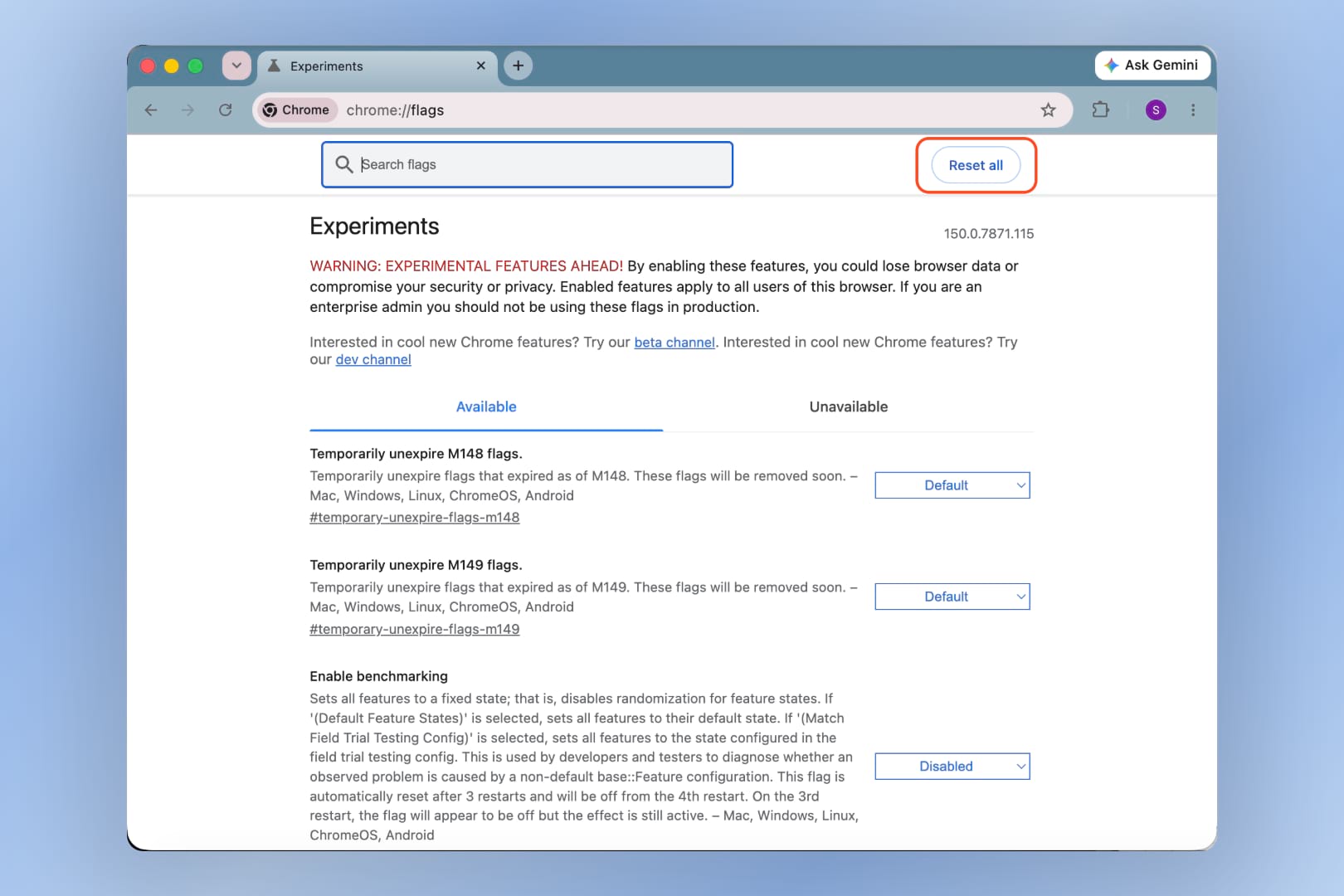
- Enter
chrome://flagsin your address bar. - Click Reset all to default.
- Open a new Momentum tab and check whether the time now displays correctly.
💡 What are Chrome flags? Flags are experimental Chrome settings. Resetting them returns any flags you've changed to their default values.
Turn off resistFingerprinting in Firefox
Firefox includes a privacy setting called resistFingerprinting that can mask information such as your time zone from websites. When enabled, it can cause Momentum's Clock to display the wrong time zone.
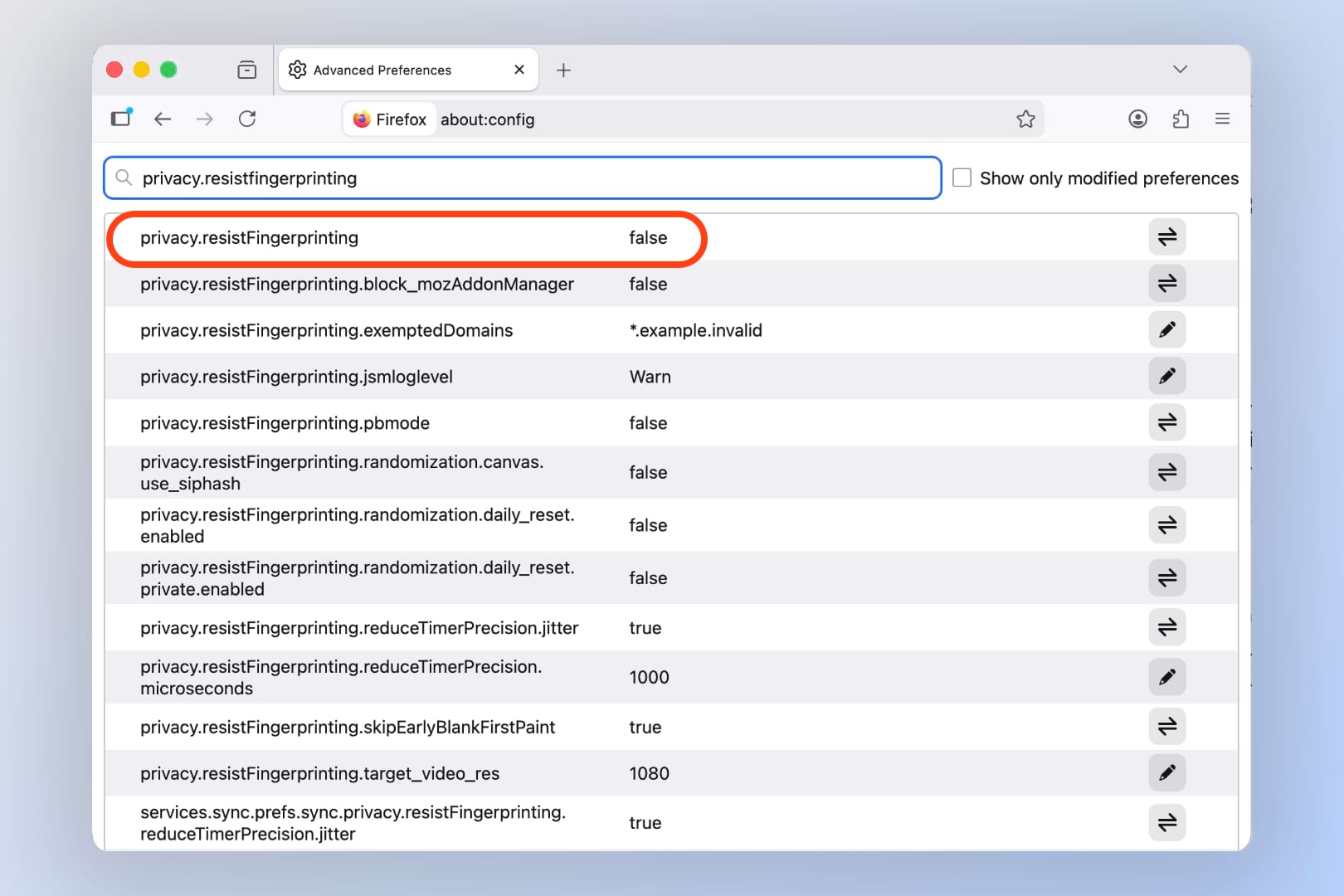
To turn it off:
- Enter
about:configin the Firefox address bar. - Search for
privacy.resistfingerprinting. - Double-click the setting to change its value to false.
- Open a new Momentum tab and check the Clock again.
💡 Prefer to keep this privacy setting on? You can skip this step and try the other troubleshooting options instead. Turning it off changes how websites such as Momentum can read your time zone
Reinstall your browser
If the Clock is still displaying the wrong time after trying the steps above, reinstalling your browser has resolved the issue for some users.
Get additional help
If your Clock is still showing the wrong time after working through these steps, get in touch and include:
- The browser and operating system you're using
- When you first noticed the Clock displaying the wrong time
- Whether the time is also incorrect on other websites or services, such as Gmail or Slack
These details can help us narrow down where the time mismatch is coming from.
FAQs
:::faq
Q: Why does Momentum use my computer's time zone instead of a setting inside Momentum?
A: Momentum pulls the time directly from your operating system so it always matches the rest of your computer, without needing a separate time zone setting to keep in sync.
Q: Will resetting my system time zone affect other apps or websites?
A: Switching your time zone and back is a temporary refresh step. Once you've set it back to your correct time zone, other apps and websites will continue working as expected.
Q: I don't use Chrome or Firefox. What should I try?
A: Start with the Restart your browser and Restart your computer steps, since those apply to any browser. If the issue continues, get in touch with your browser and OS details so we can help directly.
Q: None of these steps fixed it. What now?
A: Get in touch with your browser, operating system, when you first noticed the issue, and whether other sites show the wrong time too. This helps us pinpoint the cause faster.
Q: Why is my Clock one hour ahead or behind when my computer shows the correct time?
A: Recent Daylight Saving Time (DST) or regional time-zone changes may affect how your computer or browser interprets local time. Check whether your computer has selected the correct time zone for your location.
If automatic time-zone detection selects the wrong region, try manually choosing the correct time zone while keeping automatic system time enabled.
:::