Momentum's clock displays the time from your computer's system clock. If the time looks incorrect, the issue is usually with your system or browser settings rather than Momentum itself.
If you've already checked your system time and restarted your browser using the steps in the Clock article, the troubleshooting steps below cover additional solutions for Mac, Windows, Chrome, and Firefox.
If none of these work, get in touch and let us know:
- What browser and operating system you're using
- When you first noticed the time displaying incorrectly
- Whether the time is also wrong on any other websites or services (e.g. Gmail, Slack)
Reset your system time on Mac
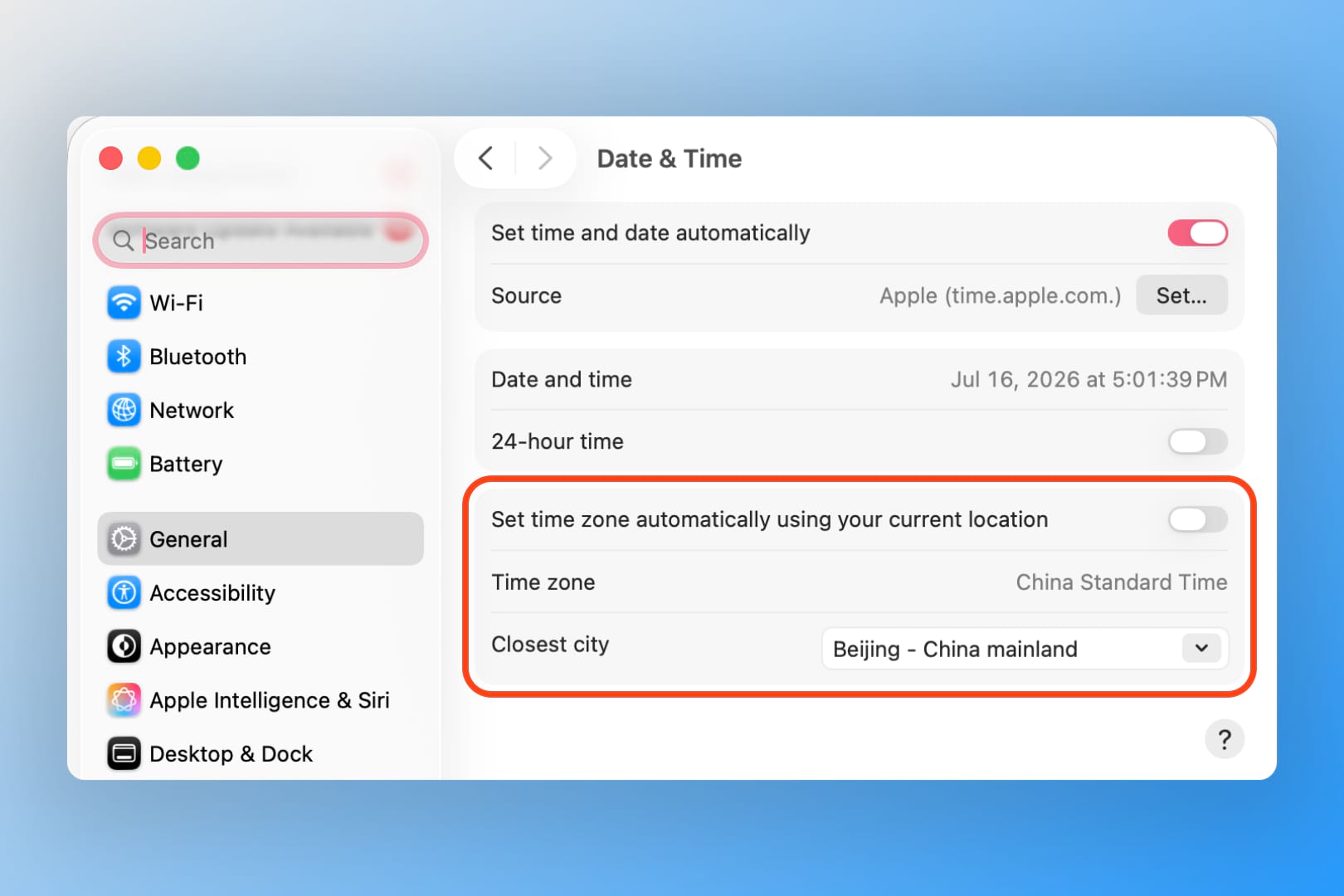
- Click the time at the top right of your menu bar.
- Select Open Date & Time Preferences...
- Click the lock icon in the bottom left corner of the window and enter your password to make changes.
- Uncheck Set time zone automatically using current location.
- Open the Closest City dropdown and select a random city that isn't your own.
- Start typing your actual city's name, select it from the dropdown, then press Enter.
- Revisit Momentum to see if the clock now displays correctly.
Switching time zones and back forces macOS to refresh its time zone data, which often clears up display mismatches.
Reset your system time on Windows
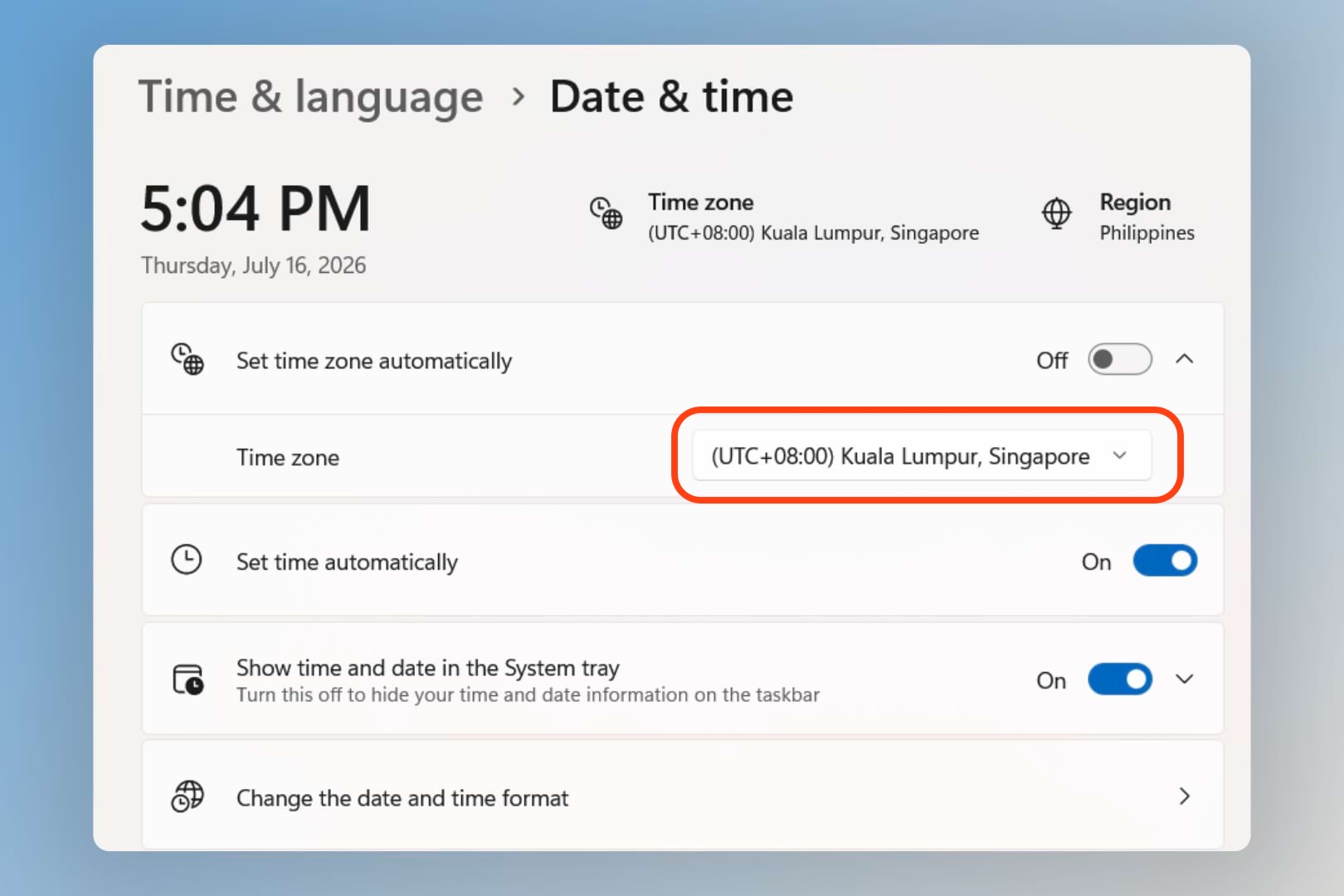
- Right-click the time in the bottom right corner of your screen and select Adjust date/time.
- Under Time zone, switch to a different time zone, then switch back to your correct one.
- Revisit Momentum to see if the clock now displays correctly.
Restart your browser
Exit your browser completely, relaunch it, and open a new Momentum page to see if the time now displays correctly.
Restart your computer
Restart your computer, relaunch your browser, and open a new Momentum page to see if the time now displays correctly.
Reinstall your browser
If the steps above don't help, reinstalling your browser has resolved this for some users.
Reset your Chrome flags
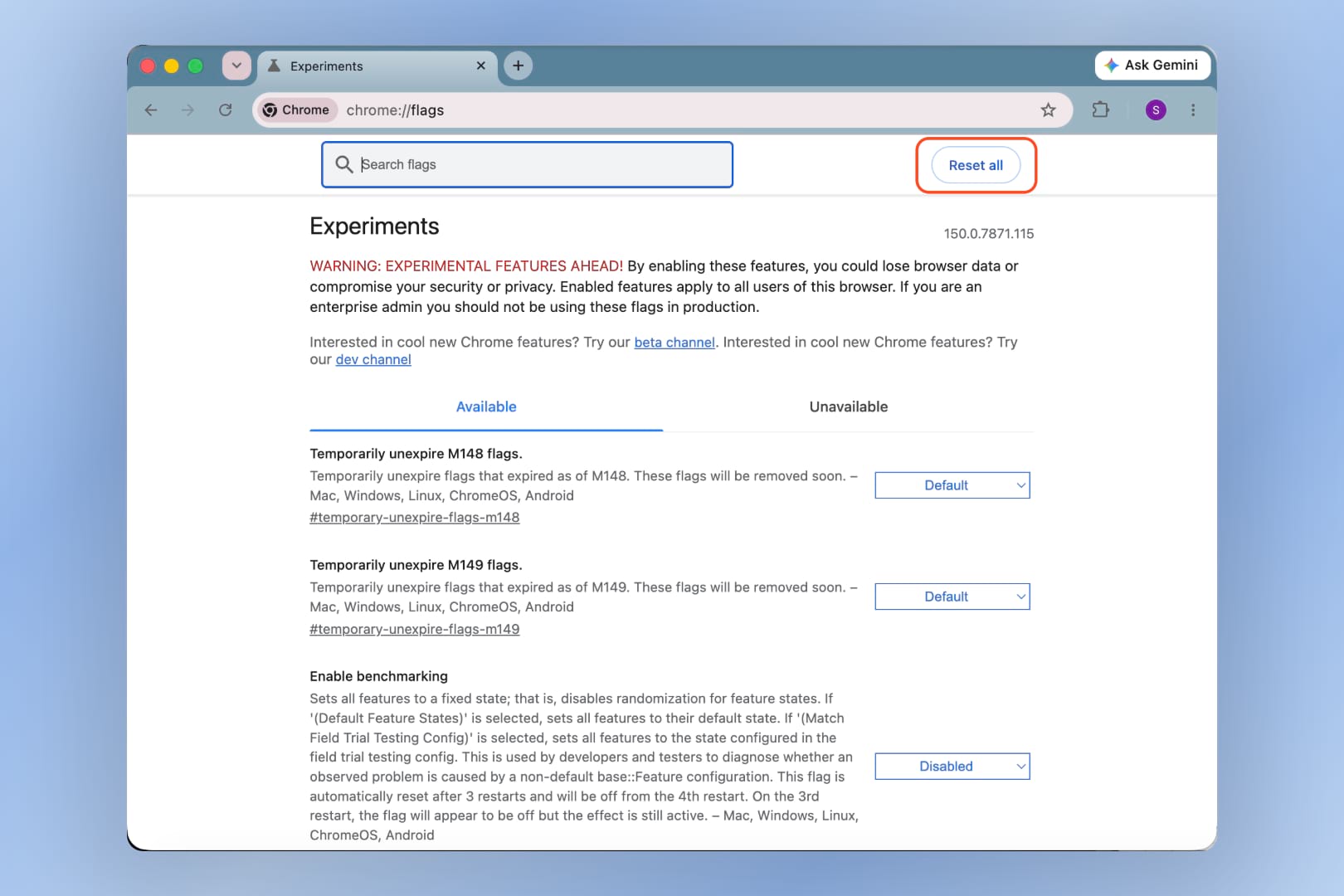
If you're using Google Chrome and still seeing the wrong time, try resetting your Chrome flags:
- Enter
chrome://flagsinto your address bar. - Click Reset all to default on the left side of the page.
- Open a new Momentum page to see if the time now displays correctly.
Turn off resistFingerprinting in Firefox
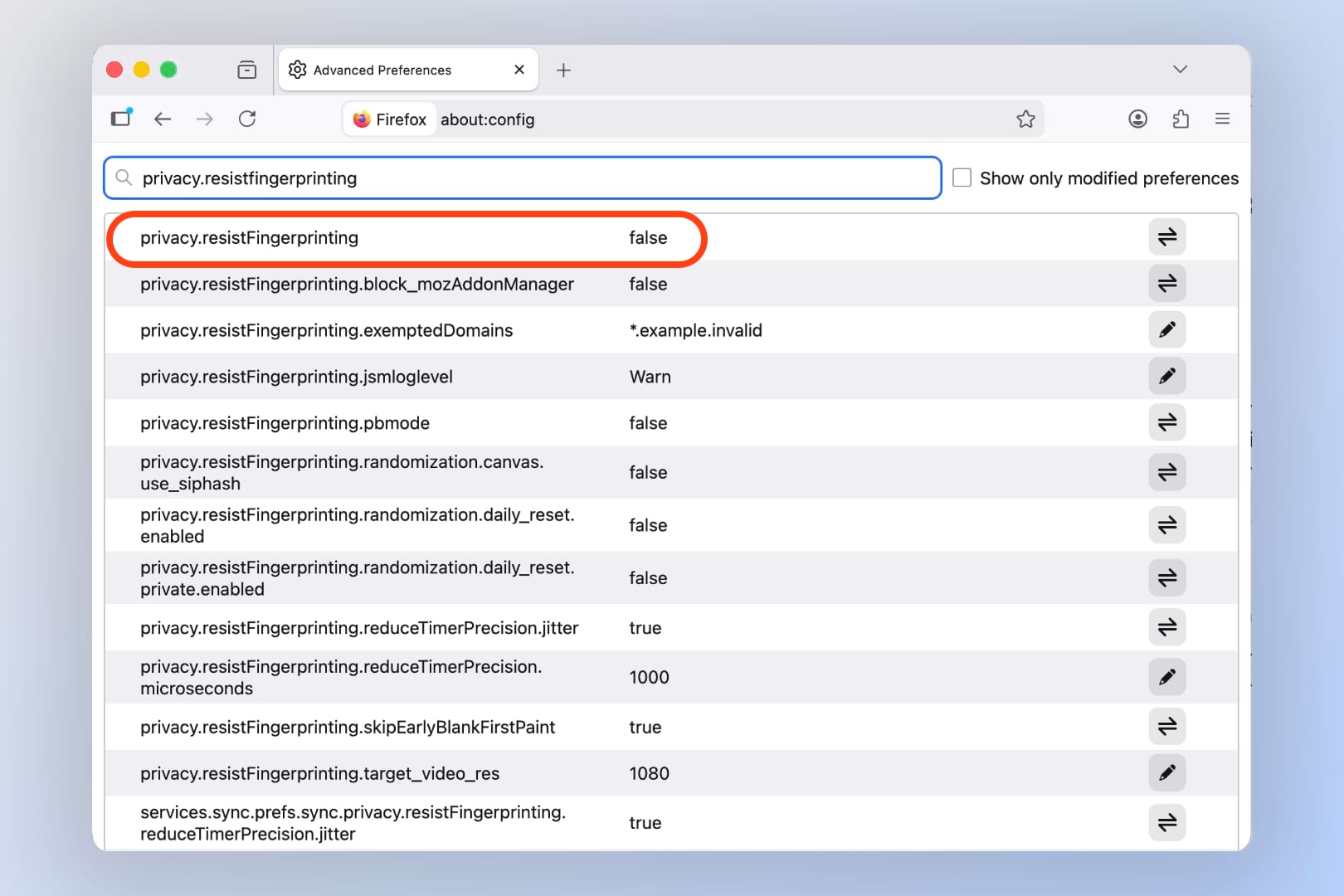
Firefox has a privacy setting called resistFingerprinting that can mask details like your time zone from websites to help protect your privacy. This is helpful for anti-tracking, but it can also cause Momentum's clock to display the wrong time zone.
- Enter
about:configinto your address bar. - Search for
privacy.resistfingerprinting. - Double-click it to change the value to false.
- Open a new Momentum page to see if the time now displays correctly.
💡 Tip: Turning this off only affects how sites like Momentum read your time zone. If you'd rather keep this privacy protection on, you can skip this step and try the other solutions above instead.
FAQs
:::faq
Q: Why does Momentum use my computer's time zone instead of a setting inside Momentum?Momentum pulls the time directly from your operating system so it always matches the rest of your computer, without needing a separate time zone setting to keep in sync.
A:
Q: Will resetting my system time zone affect other apps or websites?
A: Switching your time zone and back is a temporary refresh step. Once you've set it back to your correct time zone, other apps and websites will continue working as expected.
Q: I don't use Chrome or Firefox. What should I try?
A: Start with the Restart your browser and Restart your computer steps, since those apply to any browser. If the issue continues, get in touch with your browser and OS details so we can help directly.
Q: None of these steps fixed it. What now?
A: Get in touch with your browser, operating system, when you first noticed the issue, and whether other sites show the wrong time too. This helps us pinpoint the cause faster.
:::
Related articles
- Clock ↗
- World Clocks ↗
- Weather widget ↗