Lists help you separate what matters by context, whether that's work, personal errands, or a specific project, so you always know where to look for what's next.
Built-in lists
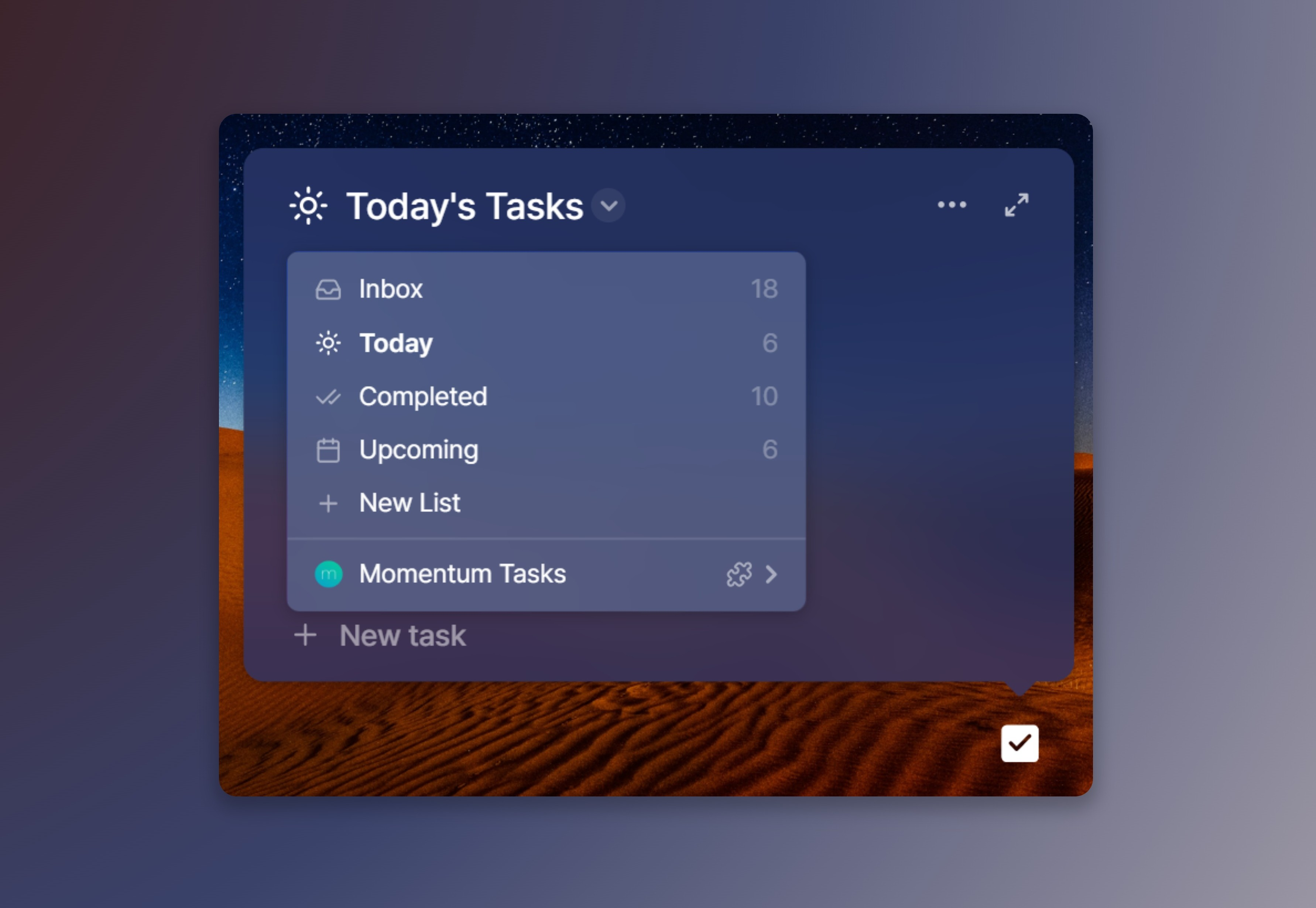
Tasks v2 includes four built-in lists:
- Inbox – your main list for everything
- Today – what you want to focus on now
- Upcoming – tasks scheduled for the next 7 days
- Completed – completed tasks
Tasks stay in their original list even as they also appear in Today once they're due, so you can plan ahead in Upcoming without needing to move anything.
To switch lists, click Tasks, then click the list name (top left), then select a list.
Plan your week with Upcoming
Use the Upcoming list to view and plan tasks for the next 7 days. You can drag and drop tasks within the view to adjust your schedule.
Use the expanded Tasks view
Expand the Tasks panel to see more and organize with room to spare:
- Click Expand (top right)
- View the sidebar with all your lists
- Drag tasks between lists directly from the sidebar
Customize how your lists look and behave
Make Tasks work the way you prefer:
- Add icons and colors to your lists for quick recognition
- Choose where new tasks appear (top or bottom)
- Set how completed tasks behave: move automatically, stay for the day, or always remain visible
- Choose your preferred start day of the week
Create and manage custom lists
❇️ Momentum Plus Exclusive
Custom lists let you keep different areas of your life separate and easy to manage, beyond the four built-in lists. For creating, renaming, reordering, and deleting custom lists, see Multi-Tasks lists.
FAQs
:::faq
Q: Can I move a task from one list to another?
A: Yes, drag and drop it in Upcoming, or use the sidebar in the expanded Tasks view.
Q: Where do new tasks appear in a list
A: You can choose either top or bottom; it's one of the list customization options.
Q: Is there a limit to how many custom lists I can create?
A: No, there's no limit.
Q: Do I need Momentum Plus to create custom lists?
A: Yes, custom lists are a Plus feature; the four built-in lists (Inbox, Today, Upcoming, Completed) are available to everyone.
:::