Personalize your Momentum account by adding a profile photo. Your photo appears next to your display name in Settings :settings-2: located in the bottom-left corner of your dashboard.
If you haven't added a profile photo yet, you'll see a default placeholder image instead.
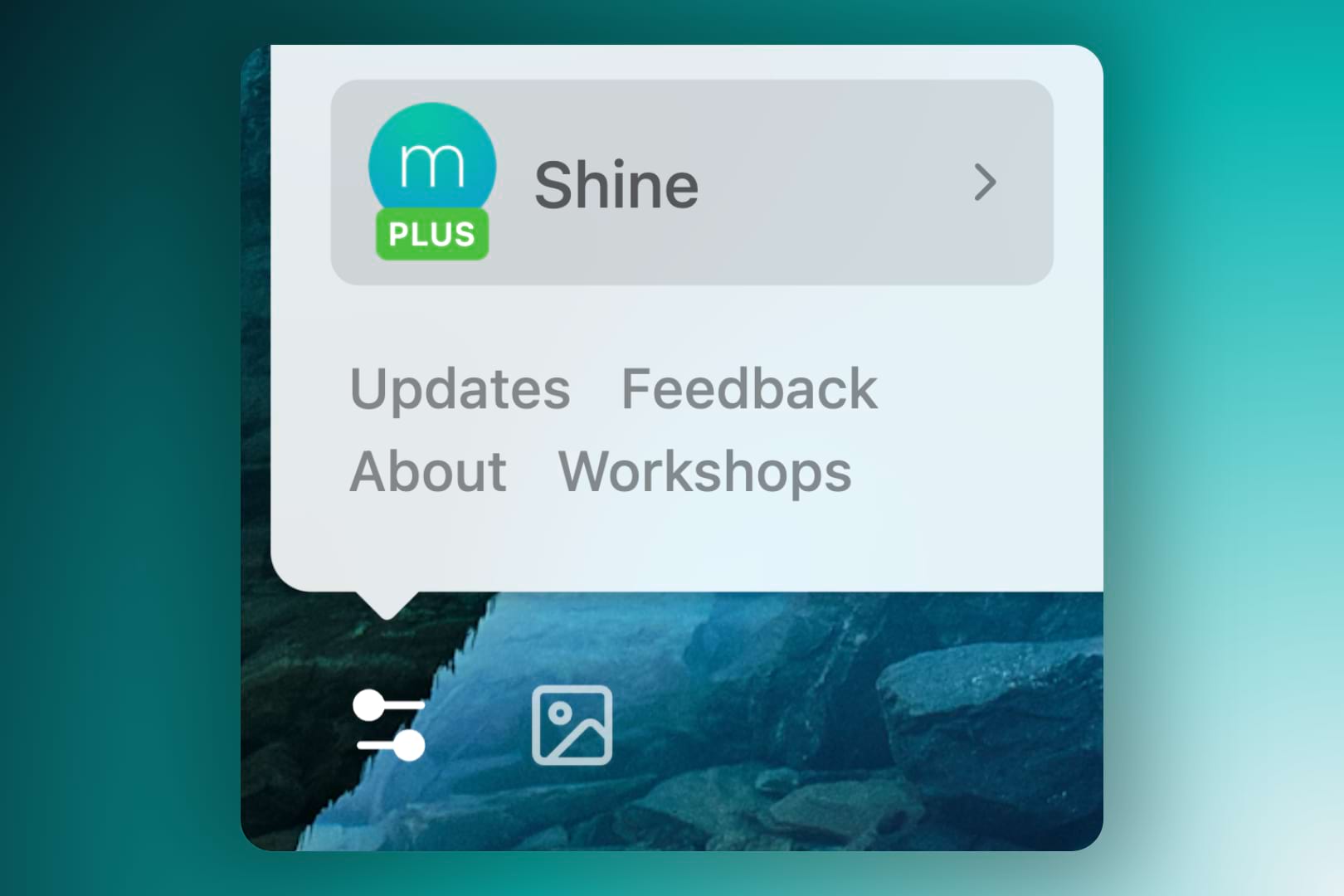
💡 Tip: A profile photo can help you quickly identify your account, especially if you use multiple Momentum accounts or share a computer with others.
Add or update your profile photo
Upload a photo directly from your device to personalize your Momentum profile.
- Open Settings :settings-2:.
- Click your display name.
- Under Info, click Add photo.
- If you already have a profile photo, click your current photo to change it.
- Select the photo you want to use from your device.
- Double-click the photo, or select it and click Open.
- Your new profile photo appears right away.
💡 Before uploading: Momentum uses your photo as is and doesn't crop or resize it. Crop or resize the image on your device first if needed. Your photo must also be 5 MB or smaller.
Remove your profile photo
Remove your current photo whenever you want to return to the default profile image.
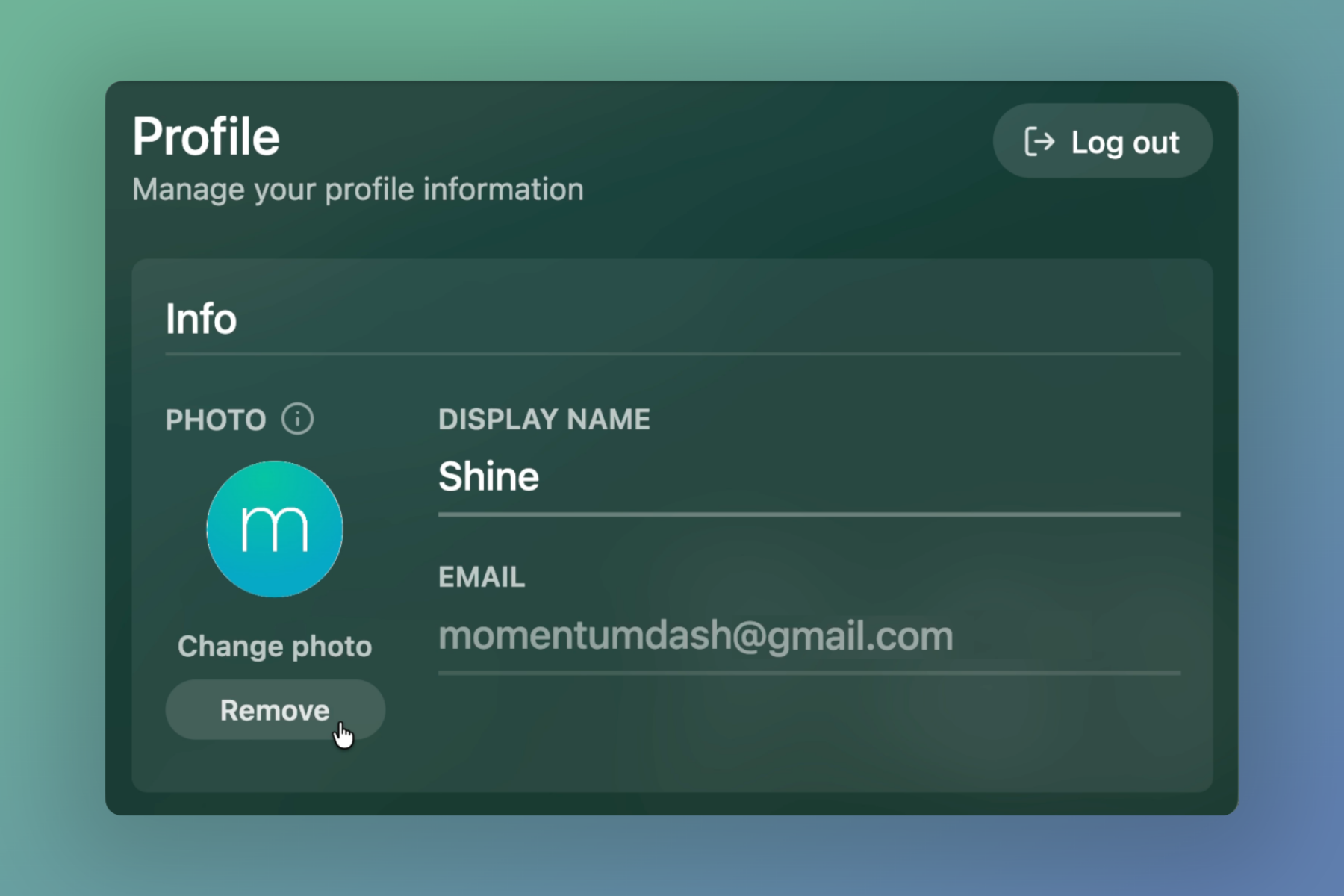
- Open Settings :settings-2:.
- Click your display name.
- Under Info, click Remove next to your profile photo.
Momentum will return to showing the default placeholder image.
FAQs
:::faq
Q: What image formats does Momentum support for profile photos?
A: Momentum supports JPEG, PNG, GIF, and WEBP files.
Q: Is there a size limit for my profile photo?
A: Yes, your photo file must be 5MB or smaller. Momentum uses your photo as is and doesn't resize or crop it, so make any adjustments on your device before uploading.
Q: How long does it take for my new photo to appear?
A: Your photo updates on your dashboard right away. If you don't see the change, try refreshing your dashboard.
:::