Keep your browser organized without losing the tabs you need. With Momentum's Tab Stash :momentum-tab-stash: you can save all your open tabs as a session, clear your browser, and return to them whenever you're ready.
Whether you're switching projects, wrapping up for the day, or simply need a cleaner workspace, Tab Stash helps you reduce tab clutter while keeping important pages within reach.
❇️ Momentum Plus Exclusive
Tab Stash is available with Momentum Plus. Learn more about Momentum Plus
Save your open tabs
Save your open tabs as a session when you want to clear your browser without losing your place.
- Open the Tabs app :momentum-tab-stash:
- Click Stash all tabs.
- Your open tabs are saved as a session, labeled with the date and time they were saved.
Once you've saved a session, you'll also see Restore last session and your saved sessions in Tab Stash.
Choose which tabs to stash
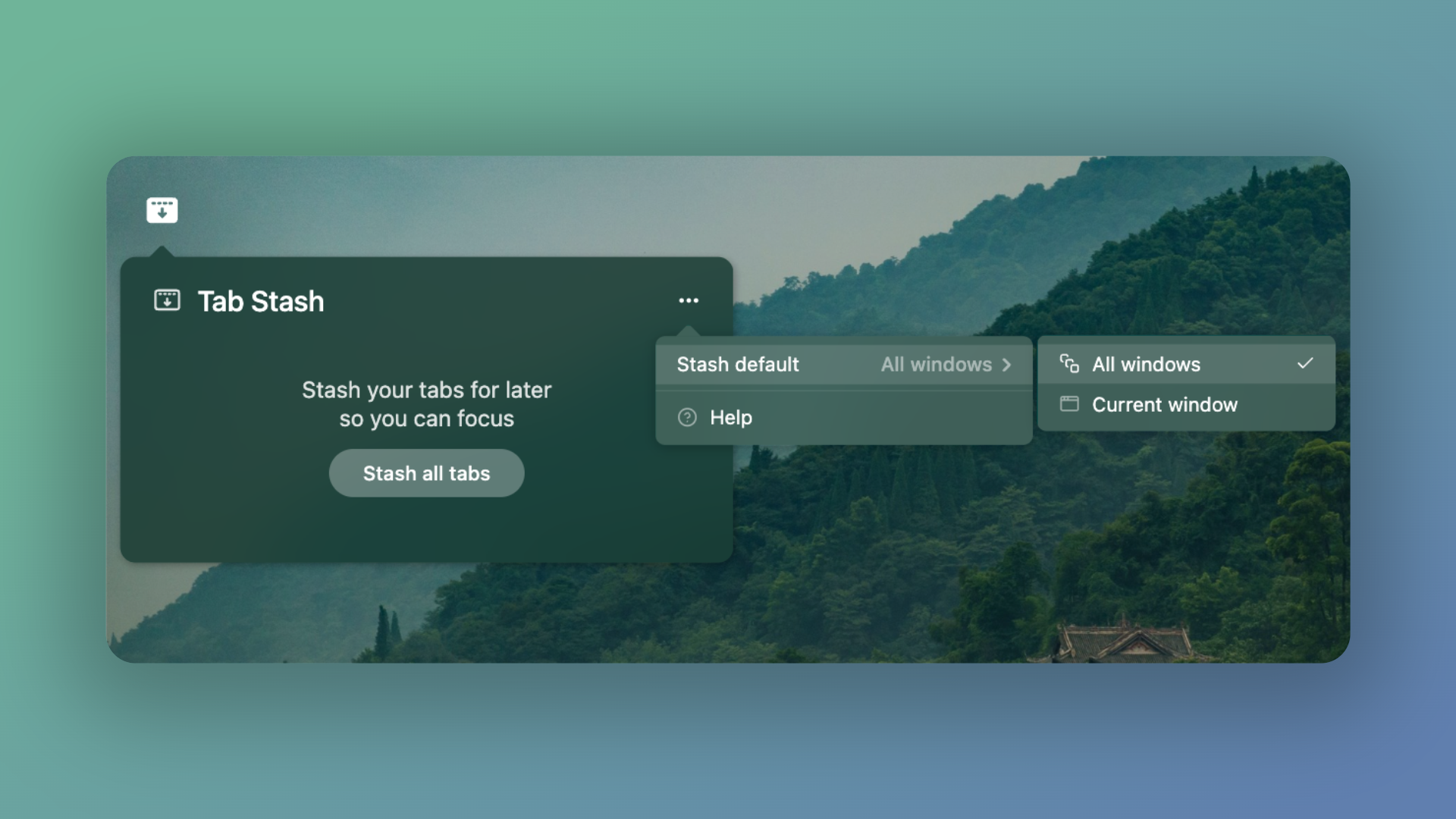
You can choose whether Tab Stash saves tabs from all accessible windows or only the window you're currently using.
- Click the ••• menu in Tab Stash.
- Select Stash default.
- Choose:
- All windows to save tabs from all open windows that your current Momentum account can access within the same browser.
- Current window to save tabs from only the browser window you're currently using.
Your selection becomes the default action for Stash all tabs.
💡 Tip: If you have multiple windows open in the same browser, All windows can stash tabs across those windows as long as they're accessible to your current Momentum account. Current window only stashes tabs from the window you're currently using.
To save only your current window without changing your default, click the dropdown arrow next to Stash all tabs, then select Stash this window.
You can save as many tabs, windows, and sessions as you'd like.
Restore a saved session
Ready to pick up where you left off? Restore an entire saved session to reopen its tabs.
- Open the Tabs app :momentum-tab-stash:
- Find the session you'd like to reopen.
- Click Restore next to the session.
The tabs from that session will reopen in your browser.
💡 Tip: Click Restore last session at the top of the Tabs app to quickly reopen your most recently saved session.
Open individual tabs from a session
You don't have to restore an entire session. Open only the tabs you need to keep your workspace focused.
- Open the Tabs app :momentum-tab-stash:
- Click the saved session you'd like to review.
- Find the tab you want to reopen.
- Click the tab title to open it.
Repeat this for any other tabs you'd like to reopen.
Organize your saved sessions
Give your sessions meaningful names so you can quickly recognize what you were working on, and remove sessions you no longer need.
Rename a session
Rename sessions to keep your saved tabs organized.
- Open the Tabs app :momentum-tab-stash:
- Find the session you'd like to rename.
- Click the ••• menu next to the session.
- Select Rename.
- Enter a new name, then press Enter to save it.
Your new session name will appear in the Tabs app.
Delete a session
Remove individual sessions you no longer need to keep Tab Stash organized.
- Open Tab Stash.
- Find the session you'd like to delete.
- Click the ••• menu next to the session.
- Select Delete.
- Click Delete session to confirm.
- To cancel, click Keep session.
⚠️ Deleted sessions can't be restored. Make sure you no longer need the saved tabs before deleting a session.
Delete all sessions
If you no longer need any of your saved sessions, you can clear them all at once.
- Open Tab Stash.
- Click the ••• menu.
- Select Delete all sessions.
- Confirm that you'd like to delete all sessions.
⚠️ Deleting all sessions is permanent. Once deleted, your saved sessions can't be restored.
FAQs
:::faq
Q: Is there a limit to how many tabs I can stash?
A: No. You can save as many tabs, windows, and sessions as you'd like.
Q: Does Tab Stash sync across my devices?
A: Yes. Tab Stash works seamlessly across Chrome, Edge, and Firefox, even on different computers.
Q: Can I restore just one tab instead of the whole session?
A: Yes. Open the session to review its tabs, then click any tab title to open it individually instead of restoring the full session.
Q: Can I restore a deleted session?
A: Deleted sessions can't be restored. Before deleting an individual session or all sessions, make sure you no longer need the saved tabs.
:::