Your Momentum account password protects your personal data, preferences, and Plus subscription. You can update it anytime, whether you're currently signed in or need to reset it after losing access.
💡 Tip: Refresh your password if you've used it on other sites, suspect someone else knows it, or just want extra peace of mind. Regular updates are a simple way to keep your Momentum experience secure.
Change your password when you're signed in
If you're on Momentum Dash 2.27.1 or later
If you're currently signed into Momentum, update your password directly from your profile settings.
- Open Settings :settings-2: in the bottom left corner.
- Click your profile card near the bottom left. It shows your name and profile photo.
- Under Account, click Change password.
- Enter your new password under New password.
- Enter it again under New password again.
- Click Save.
- When you see the Check your email to confirm new password message, open the confirmation email from Momentum.
- Follow the link in the email to confirm your new password.
⚠️ Important: Your new password won't take effect until you confirm the change through the email from Momentum.
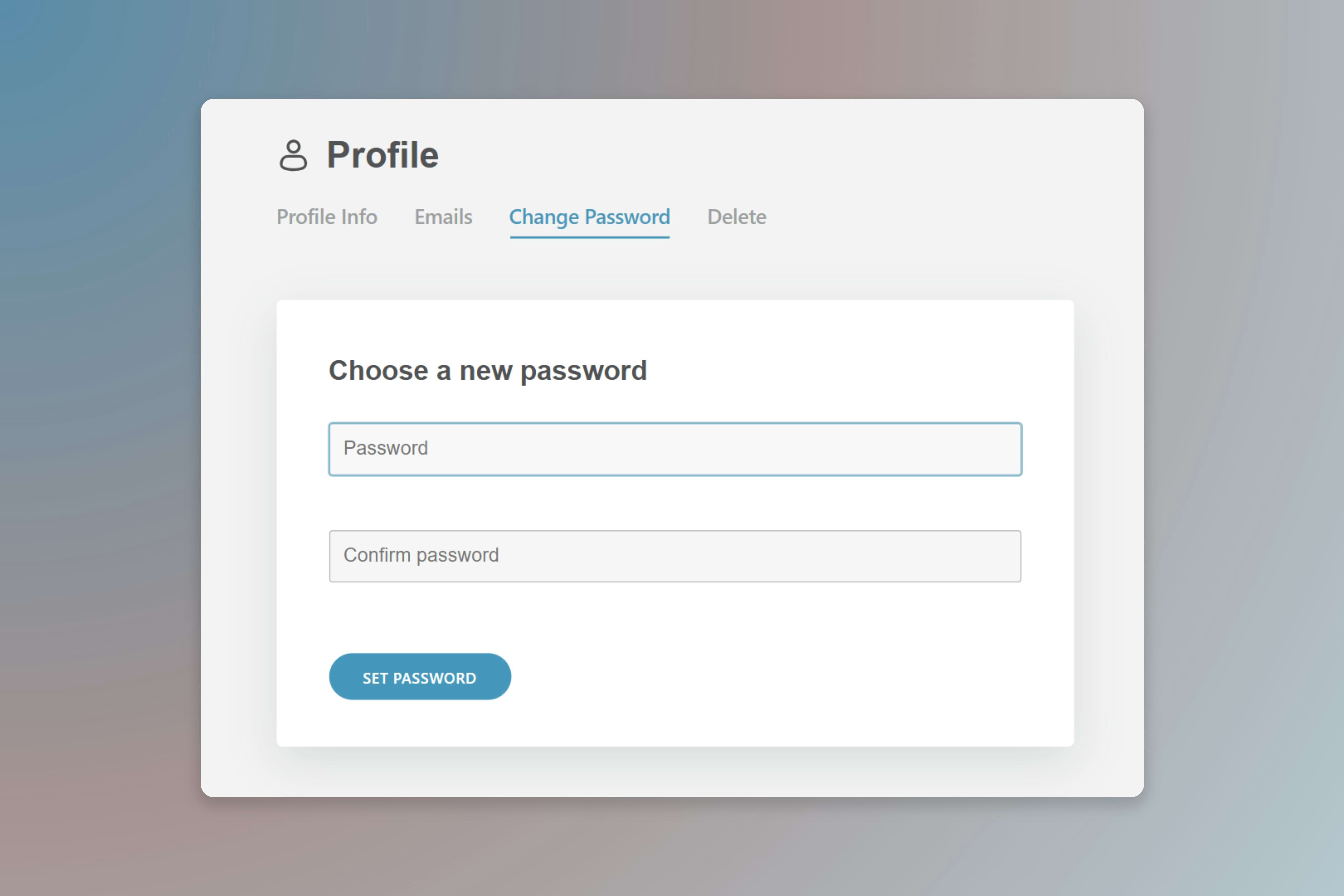
If you're on an earlier version
- Open Settings :settings-2: in the bottom left corner.
- Click the downward arrow beside your profile name.
- Select Profile.
- Under Profile, click Change password.
- Enter your new password in both fields.
- Click Set password.
- Open the confirmation email and click Confirm to finalize the change.
⚠️ Important: Your new password won't take effect until you confirm the change through the email from Momentum.
Change your password when you're signed out
If you're signed out and need to change your password, you'll first need to recover your account.
- Follow the steps in our Account Recovery guide to regain access to your account
- Once you're signed back in, follow the steps above under Change your password when you're signed in
Keep your account secure
A few habits go a long way toward protecting your account:
- Use a unique password for each service you use
- Update your password right away if you suspect it's been compromised
- Never share your password with anyone. Momentum staff will never ask for it
- Consider a password manager to generate and store strong passwords
FAQs
:::faq
Q: What makes a strong password?
A: A strong password has at least 8 characters and mixes uppercase letters, lowercase letters, numbers, and symbols. Avoid common words or personal information.
Q: I didn't receive the password reset email. What should I do?
A: Check your spam or junk folder first. If it still doesn't arrive after a few minutes, request another reset. If you no longer have access to that email address, reach out to support for help.
Q: Can I reuse a previous password?
A: It's technically possible, but we recommend choosing a new password each time you update for the best security.
:::